

Set Up Custom On-Hold Music in a Cloud PBX
1. Open the Cloud PBX
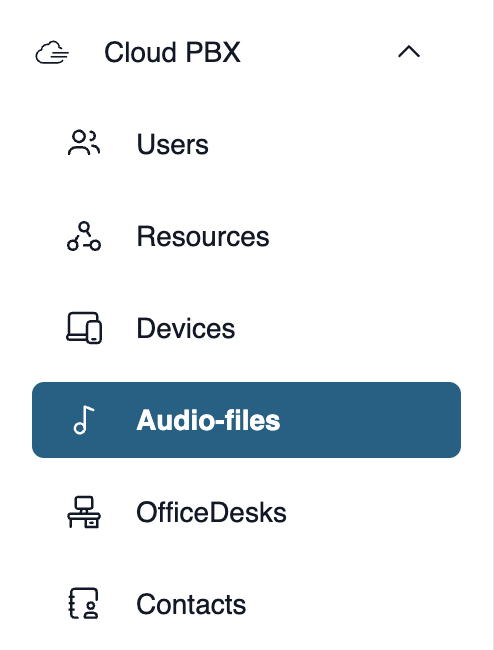
In the side navigation, go to the “Cloud PBX” menu item. This will display the various sections of the Cloud PBX.
Next klick “Audio Files”.
2. Add audio files
There you will find an overview of all audio files that are already available. To create a new file, please click “+ Add New Audio File.”
3. Upload an audio file
Basic Settings
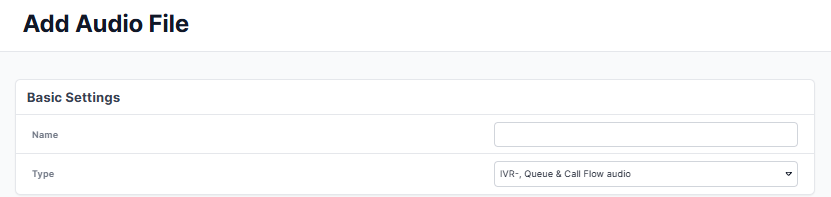
In the "Basic Settings," enter a name that you can easily recognize.
For the type, please select “IVR, Hold Music & Call Flow Audio.”
News Settings
You can upload your on-hold music using the "+ Upload New File" button. The file must be in MP3 or WAV format, with a maximum length of 2 minutes and a maximum size of 50 MB.
Alternatively, you can have the Cloud PBX call you on a specific extension so you can record a personalized message.

Attention! Please use only hold music for which you hold the rights. General information on usage can be found on the GEMA website. A rate schedule for telephone hold music is provided there.
Please confirm the action by clicking "Save." You can now find your on-hold music in the "Audio Files" section.
If needed, you can play the file or edit the entry.
4. Integrating the on-hold music
Custom hold music can be used in several places within the Cloud PBX:
4.1 For resources of the "Waiting Queue" type

You can select the “on-hold music”directly in the “Call Handling” settings for a “Resource”—provided that “Hold” has been selected as the “Extension Type” in the “Basic Settings.”
For more information, see “Setting Up a Hold Queue in the Cloud PBX.”

4.2 in Advanced Call Forwarding
- Open the advanced call forwarding settings [Call Handling > Incoming Calls > voice mail / call forwarding > Edit > Advanced Call Forwarding] for the respective user or resource.
- In the call forwarding overview, click “Edit” next to the profile you want to edit in the “Existing Profiles” section, or create a “New Profile.”
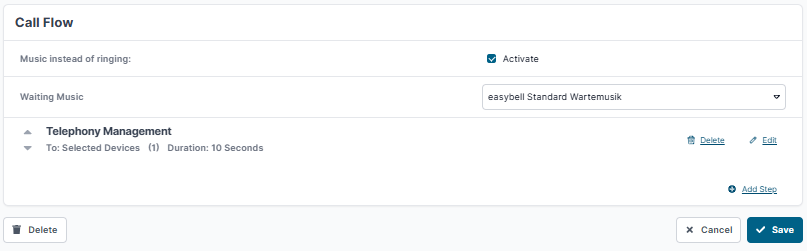
- In the "Call Distribution" section, check the box next to “Music Instead of Ringing.” You can then select any audio files of the “On-Hold Music” type.
For more information, see “Setting Up and Using Advanced Call Forwarding in the Cloud PBX.”
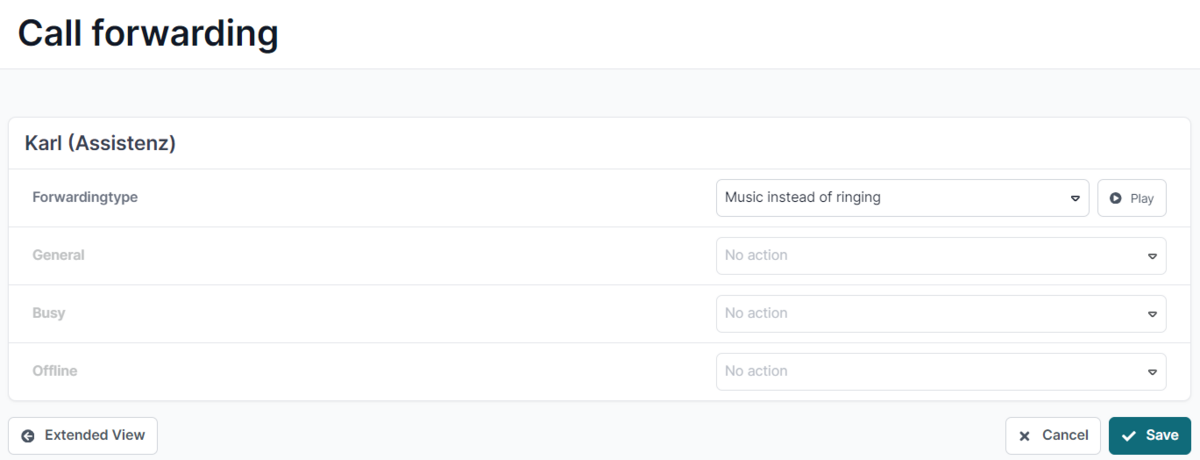
Even without advanced call forwarding, you can play an announcement to callers instead of the ringtone. To do this, in the “Simple Call Forwarding” settings for an extension of the “General Extension” type, select the “Music Instead of Ringtone” option under “Forwarding Type.”
Callers will then hear the hold music that is configured under “Hold Music” in the “Advanced Settings” > “General Settings” of the Cloud PBX. To learn how to customize this, see “Set Up Custom Hold Music.”